Loop
Last updated: February 6, 2026
Connect your agent to Loop to enable your AI to provide real-time return status and a direct line to your exchange portal to instantly resolve refund, store credit, and return shipping inquiries.
Setup
In order to connect to Loop to Engaige, you need to Create an API Key. API keys allow your Agents to programmatically read and manipulate returns data from your Loop instance. You can also refer to the official documentation made by Loop in order to create an Api key: https://docs.loopreturns.com/api-reference/authentication#create-api-keys
To do so:
Step 1: Navigate to Developer Tools
To manage or create keys, you first need to access the Developers page within your admin dashboard.
Go to Returns management.
Select Tools & integrations.
Click on Developer tools.
Step 2: Locate the API Keys Section
Once on the Developer Tools page, scroll past the "Webhooks" section to find the API Keys area. Here, you can see a list of existing keys, their labels, associated scopes, and when they were last used.
Step 3: Generate a New Key
Click the Generate API Key button.
Select the following Scopes: the following scopes are required in order for us to use all the actions associated to Loop in our platform.
Scope
Description
Return
Used for making calls to Returns API endpoints.
Order
Used for block and allow lists via the Listings API.
Destinations (read)
Allows the key to read existing Destinations.
Destinations (write)
Allows the key to create and edit Destinations.
Give the API key a descriptive name, then click Generate. Your API key has been successfully created, copy it as this will be required for the next steps and has it will be displayed only once to you.
Assigning a descriptive name to your API key inside Loop (in this case Engaige) facilitates easier identification of the API key associated with each use case.
Step 4
You have now all information needed to enable the integration inside Engaige. Log in to your Engaige dashboard:
Navigate to the Settings section on the left side panel.
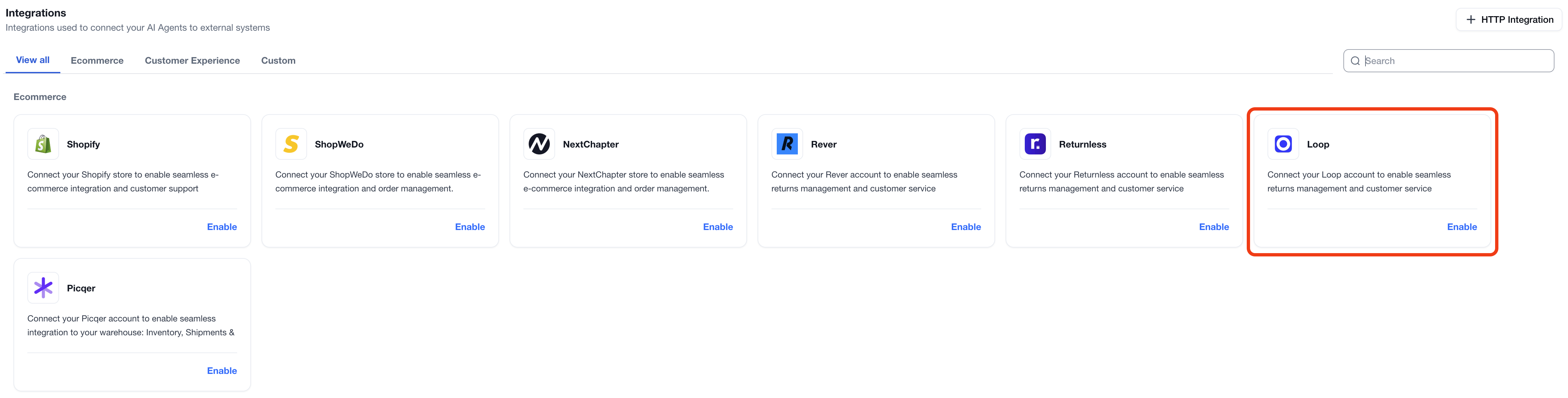
From there, click on the Integrations section.
Click on the Loop integration Enabled button. If the Loop integration is not visible, use the search bar at the top right of the page to locate the integration.
Enter your credentials from Step 1 in the form:
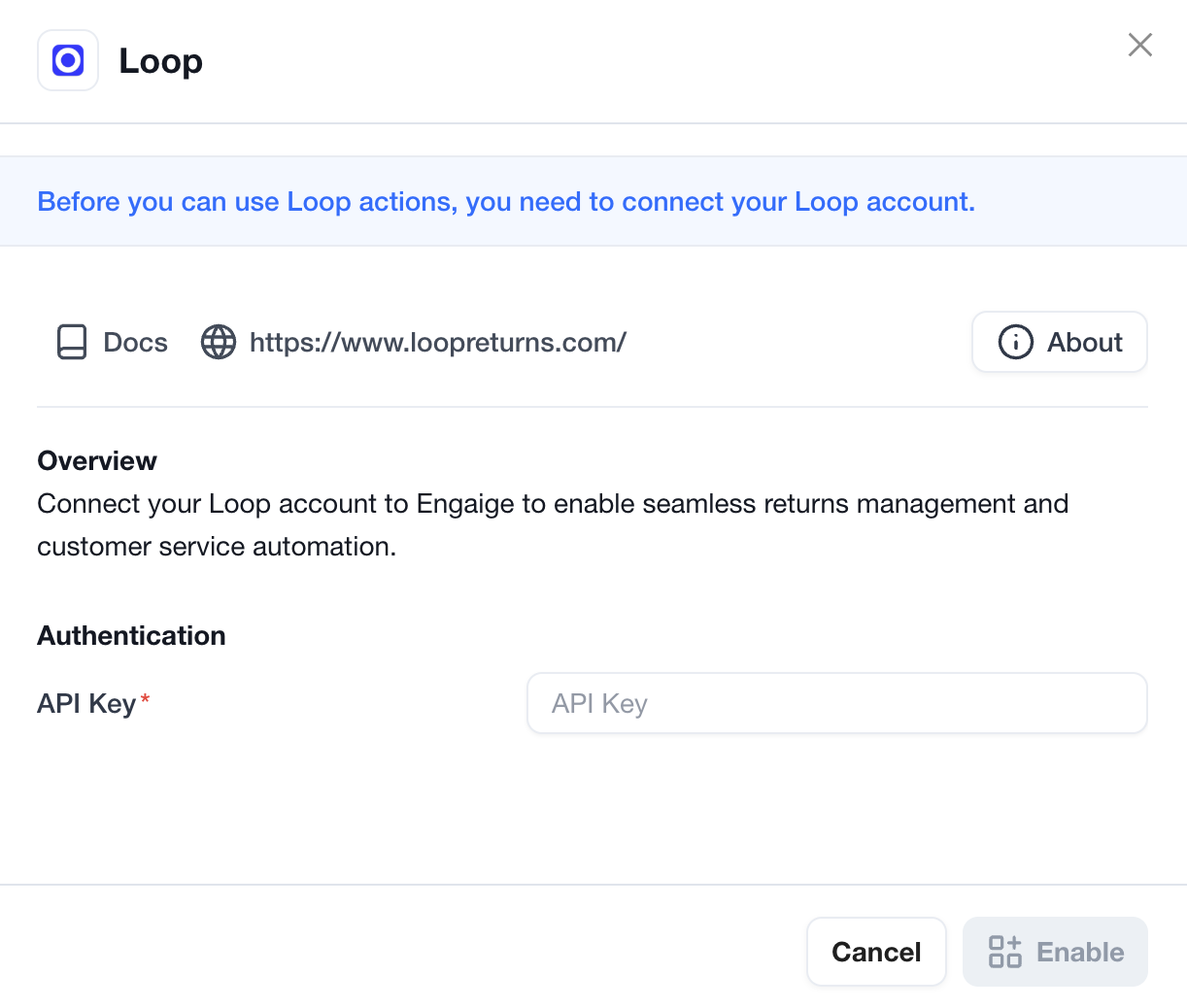
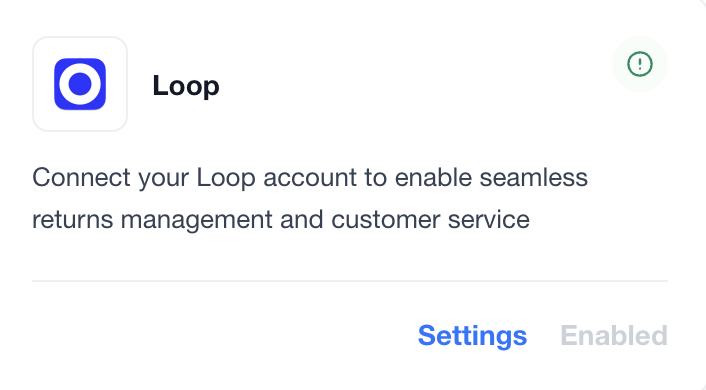
You are now all done ✅ : your Loop account is now linked to Engaige. If the setup is correct, you will see a green indicator on the integration, confirming that the Loop integration is now synced with Engaige and that the related actions are unlocked for the agent.
Actions
Enabling the Loop integration allows you to unlock new actions for your agent. In the Actions view, use the search bar at the top right and search for 'Loop' to display all related actions.
Get Returns
Functionality: This action empowers the agent to retrieve comprehensive return details from Loop for a given Shopify order, using the Shopify order name together with the customer’s email address. It queries Loop’s Get Return Details endpoint to list all return records associated with that order and then filters them to only those that belong to the verified customer.
Security & Verification: The Shopify order name and customer email address are mandatory and serve as an authentication layer, ensuring the agent verifies the customer’s identity prior to exposing any return information. If the email provided by the agent does not exactly match the email stored in Loop for the order, the action will fail with an error and no return data will be shared. If more than 5 return records are associated with a single order, the action will also stop and signal that something is likely wrong with the request or data.
Data Visibility: Upon successful retrieval and email validation, the agent can access Loop return details for the given order, such as:
Return Orders: The list of return records associated with the order, restricted to those belonging to the verified customer.
Customer Association: For each return, confirmation that it is tied to the validated customer email.
Raw Return Payload: The underlying return data as provided by Loop’s Get Return Details API, which can be used by the agent to understand what was returned, when, and in what context.
If the action is used by an agent during a conversation, it will appear as an interactive tool call. Clicking on the details will display the return information that is visible to the AI for the given order and verified customer.
Support
Are you experiencing issues integrating with Loop or interested in additional actions with Loop?
👉 Please send an email to support@letsengaige.com, with your request, and a member of our team will respond to you promptly.