Connecting Slack
Last updated: June 30, 2026
Slack Integration Setup Guide
Follow these steps to connect Slack to Engaige and start posting messages directly to your Slack channels.
Step 1: Create a Slack App
Go to https://api.slack.com/apps and sign in with your Slack workspace account.
Click Create New App.
Choose From scratch.
Enter an App Name (e.g.
Engaige) and select your Workspace.Click Create App.
Step 2: Configure Bot Permissions
In the left sidebar, click OAuth & Permissions.
Scroll down to Scopes → Bot Token Scopes.
Click Add an OAuth Scope and add:
chat:write— post messages in channels the bot is a member ofchat:write.public— post in any public channel without joining first
Step 3: Install the App to Your Workspace
Scroll to the top of the OAuth & Permissions page.
Click Install to Workspace. If you do not see Install to Workspace, go to Settings > Install App > Add app to your {companyName}.
Review the permissions and click Allow.
Step 4: Copy the Bot Token
After installation you are returned to the OAuth & Permissions page.
Under OAuth Tokens for Your Workspace, copy the Bot User OAuth Token — it starts with
xoxb-.Keep this token secure and treat it like a password.
Step 5: Invite the Bot to Your Slack Channel(s)
In Slack, open each channel you want to post into and run:
/invite @YourAppNameSkip this step if you added the chat:write.public scope.
Step 6: Create the HTTP Integration in Engaige your Engaige Dashboard
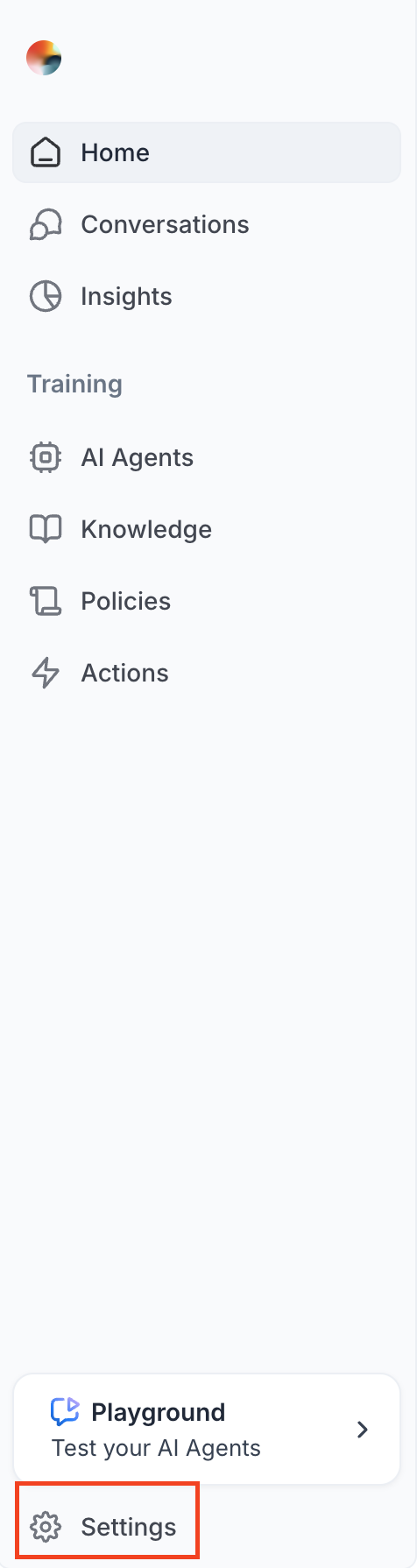
In your Engaige dashboard, go to Settings on the left bottom corner → Integrations → HTTP and create a new integration with these values below:
FieldValue | |
Integration Name |
|
Domain |
|
Authentication Method | Bearer Token |
Bearer Token | Your |
Step 7: Create the HTTP Action
Create an HTTP action linked to the Slack integration:
FieldValue | |
Method |
|
URL |
|
Example payload:
{
  "channel": "C1234567890",
  "text": "Hello from Engaige!"
}
To find your channel ID: Right-click the channel in Slack → View channel details → scroll to the bottom.