Uploading your knowledge
Last updated: February 25, 2026
The fastest way to load a large volume of knowledge into Engaige is by uploading a CSV file. This article covers the required format, the upload flow, and how to safely update existing content.
CSV Format Requirements
Your CSV must have exactly three columns with these exact header names (case-sensitive):
title— The document name (e.g., "What is your return policy?")content— The body of the document. Plain text only — markdown and HTML are stripped during ingestion.source— An optional URL or reference for the source of the content.
Tip: Create one row per FAQ: use the question as the title and the answer as the content.
Uploading a New CSV
Go to Training → Knowledge.
Click + Add knowledge (top right).
Select Import from CSV.
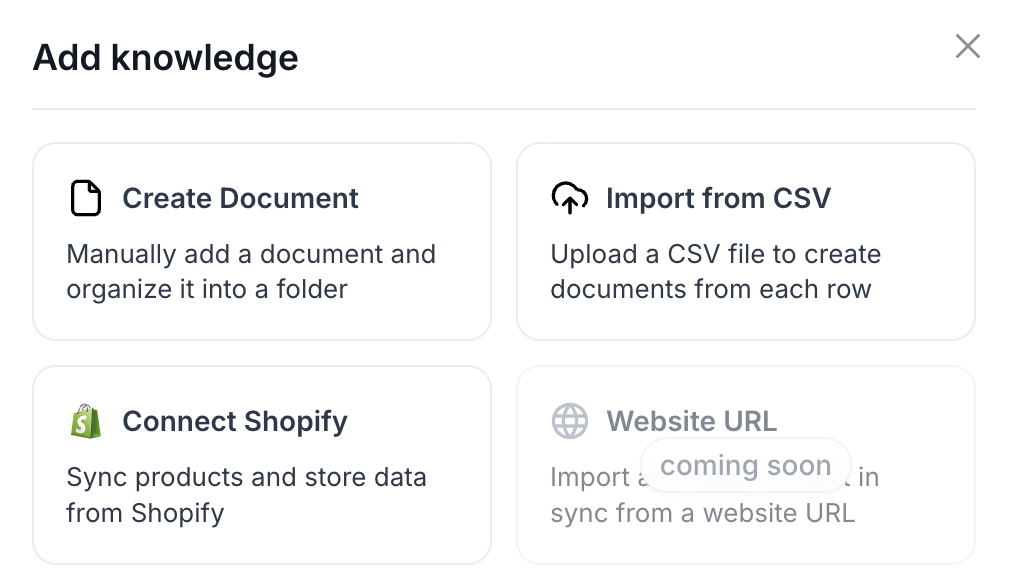
Choose your CSV file. The folder name is pre-filled from the filename — rename it if needed.
Review the file size shown in the modal. An info banner links to best practices if you need help structuring your file.
Click Upload. The system trains on the new data. Once complete, your agents can use the content immediately.
Replacing an Existing CSV Folder
When your knowledge changes, replace an existing folder's content rather than uploading a duplicate.
In Training → Knowledge, locate the folder row.
Open the folder's dropdown menu (three dots) → click Re-upload CSV.
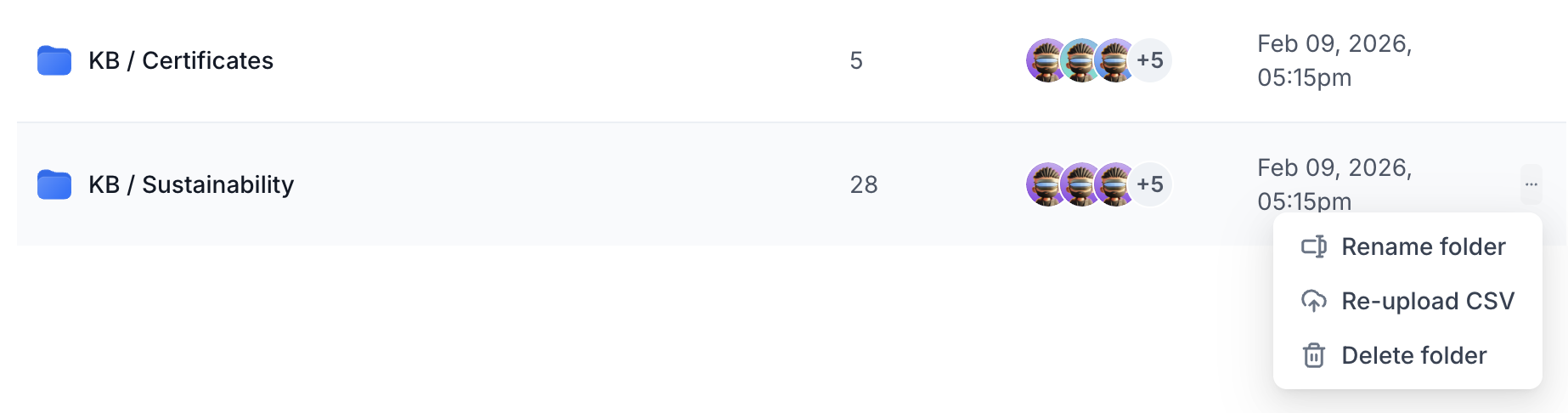
Select your new CSV file.
A diff preview appears showing exactly how many documents will be added and how many will be removed compared to the current folder.
Review the warning banner to confirm the impact looks correct.
Click Confirm. The folder is replaced entirely with the new content.
Always review the diff preview before confirming. If the numbers look unexpected — far more removals than expected, for example — cancel and double-check your file before proceeding.
Best Practices
Divide knowledge into at least two files: one for FAQs and one for Products.
Give each document a specific, descriptive title. The AI uses the title to decide whether to reference that document when answering a question.
Provide a source URL wherever possible allowing your agents to reference the page when citing the document.