Activating your AI Agent in Freshdesk & Freschat
Last updated: February 20, 2026
Now that Freshdesk and/or Freschat is connected, you need to route tickets to the AI team and configure your Engaige Agent to pick them up, either in Autonomous or Agent Assist mode.
Step 1: Configure Freshdesk Conversation Assignment
You will need to refer to Freshdesk's Help Center articles to be able to create the correct Conversation Assignment rule. As this rules depend on your Freshdesk plan, the article will help you.
Step 1.2: Configure Triggers in Engaige
Create a rule that sets the conditions to when a ticket is assigned to the group you want the AI Agent to be active in.
Now that tickets are landing in the right team, you must tell your specific Engaige AI Agent to listen to that team.
Go to AI Agents in Engaige and click on your existing Agent.
Click on the Triggers tab.
At Support Queue, select the team you used in the rule above (e.g., Engaige Agent Team).
This tells the AI: "Watch this team. When a ticket arrives here, answer it."
Click Save.
Step 1.2: Configure Handover Settings for Autonomous agent
If the autonomous AI agent cannot answer a question (e.g., no policy matches), it needs to know where to send the ticket for a human to review.
In the same Agent screen, click on the Handover tab.
Under "Handover Team", select the specific Freshchat team where human agents work (e.g.,
Support TeamorCS General).Click Save.
Success! Your integration is live. New tickets matching your rule will move to the AI team, the Agent will process them, and if it gets stuck, it will move them to your Handover team.
Step 2: Configure Freshchat Conversation Assignment
To make sure chats are routed to the Engaige AI, you must configure assignment rules.
2.1 Go to Assignment Rules
Open Freshchat.
Go to Admin Settings.
Navigate to Conversation Assignment Rules.
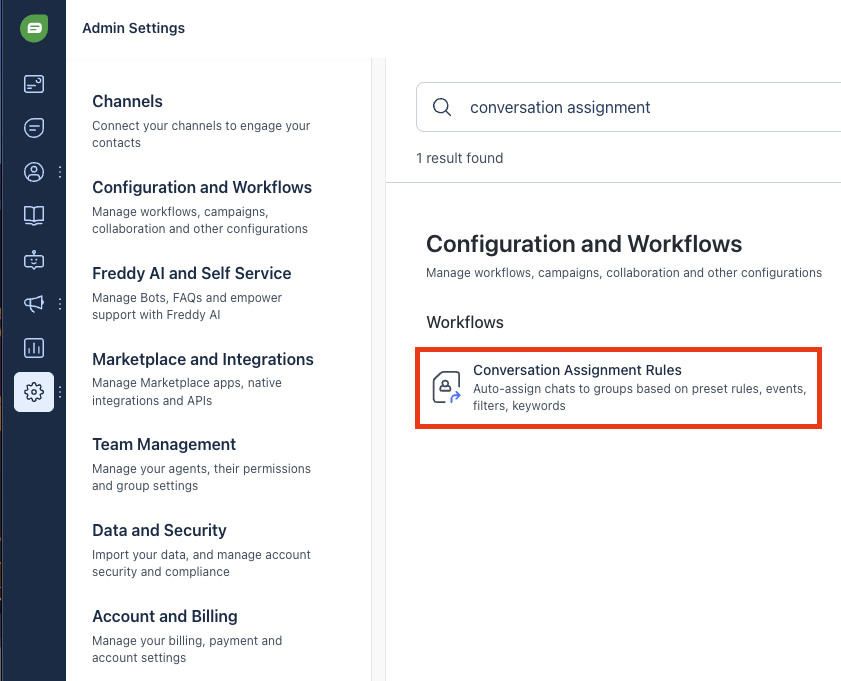
2.2 Create or Edit an Assignment Rule
Click Create Rule (or edit an existing rule).
Set a condition such as:
When a message comes from:
A specific chat widget, or
A specific channel
Set the action:
Assign conversation to a specific group
This group should be the group where Engaige is active.
Example:
If chat comes from Website Widget
→ Assign to Engaige Support Group
Save the rule.
You can refer to this article Freshworks Help Center regarding Assignment Rules to be able to create the correct rule for your company or use-case.
Step 2.3: Configure Triggers in Engaige
Now that tickets are landing in the right team, you must tell your specific Engaige AI Agent to listen to that team.
Go to AI Agents in Engaige and click on your existing Agent.
Click on the Triggers tab.
At Support Queue, select the team you used in the rule above (e.g., Engaige Agent Team).
This tells the AI: "Watch this team. When a ticket arrives here, answer it."
Click Save.
Step 2.4: Configure Handover Settings for Autonomous agent
If the autonomous AI agent cannot answer a question (e.g., no policy matches), it needs to know where to send the ticket for a human to review.
In the same Agent screen, click on the Handover tab.
Under "Handover Team", select the specific Freshchat team where human agents work (e.g.,
Support TeamorCS General).Click Save.
Success! Your Freshchat integration is live. New tickets matching your rule will move to the AI team, the Agent will process them, and if it gets stuck, it will move them to your Handover team.
AI Agents in Agent Assist mode do not need a handover team. You will only assign agent assist agents to a support team.