Connecting Gorgias
Last updated: July 28, 2026
Connect your Gorgias helpdesk to let your AI Agent read tickets, draft responses, and resolve customer inquiries automatically.
You will need Admin role in your Gorgias environment to be able to follow the steps below. Bear in min that after you integrated your Gorgias, Engaige will have created a new user for the Engaige agent in your Gorgias account.
Step 1: Get your Gorgias Credentials
To connect the integration, you need your API Key (sometimes called a Password in Gorgias) and your Username.
Log in to your Gorgias dashboard.
Click the dropdown in the top-left corner.
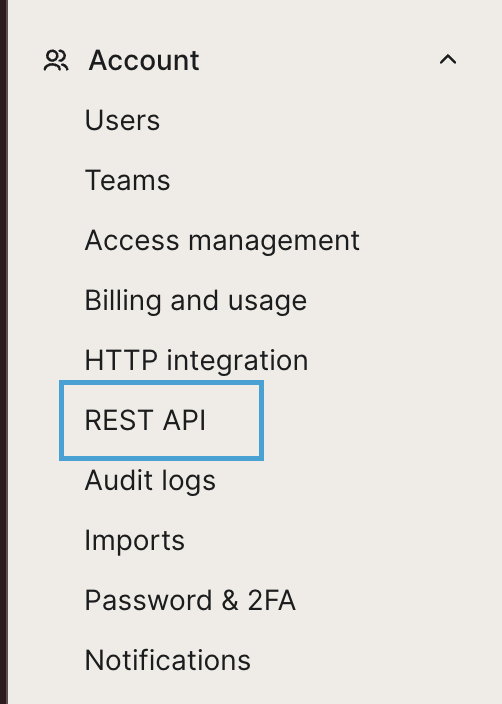
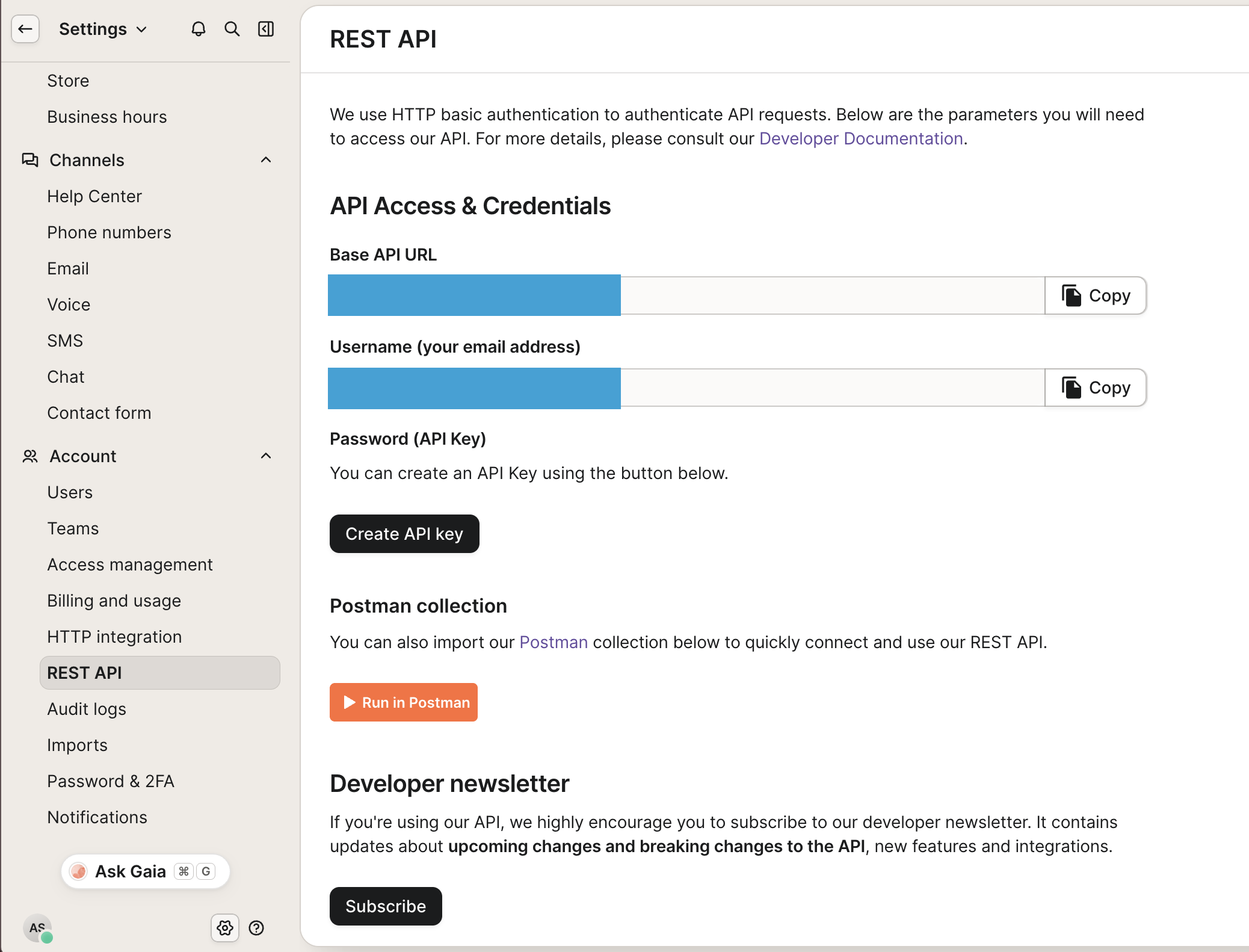
Go to Settings -> Account -> REST API.
Fill in and copy the following details:
Base API URL (specifically the subdomain, e.g.,
brandnamefrombrandname.gorgias.com). This value will be auto-filled with your Gorgias domain.Username (your email address).
Password (API Key).
Note: If you don't see an API key, click Create API Key.
Step 2: Enable the Integration in Engaige
Open your Engaige Dashboard in a different tab.
Go to Settings -> Integrations.
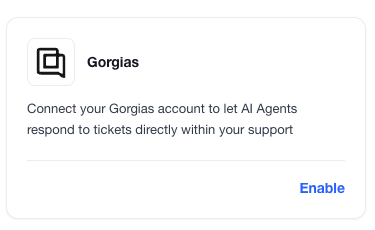
Locate the Gorgias card and click Enable.
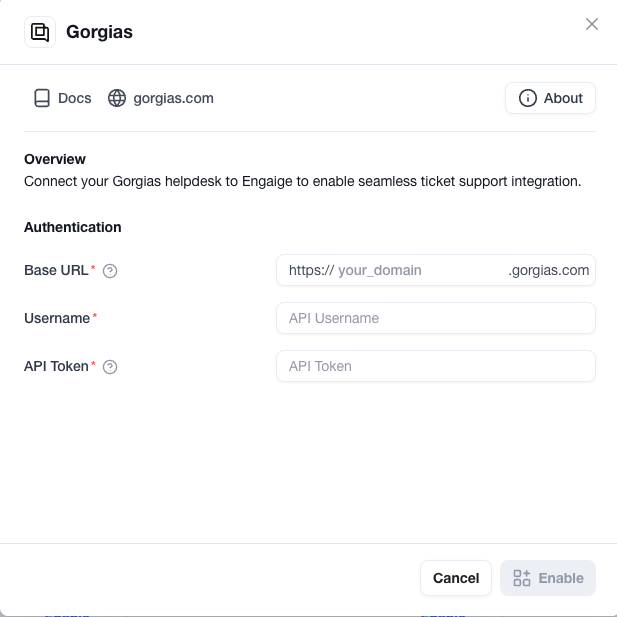
A modal will appear. Enter the credentials you found in Step 1:
Base URL: Enter your domain name (e.g.,
brandname). We automatically format this for you.Username: Paste your Gorgias "Username (your email address)".
API Token: Paste the "Password (API Key)" from Gorgias.
Click Enable.
If the credentials are correct, the integration will show as Enabled.
Step 3: Automatic Team Setup
Once connected, Engaige automatically configure your Gorgias environment to work with the AI. In Gorgias, you will see:
A new AI Agent Team in Gorgias: most likely called Engaige
A new Handover Team (for tickets the AI cannot solve): most likely called Engaige Handover Team
A new User: called Engaige Agent
This will be used later to route tickets to your AI agent so that it will respond to your incoming tickets. Do this after you have setup your agent. You can read more about this here.